
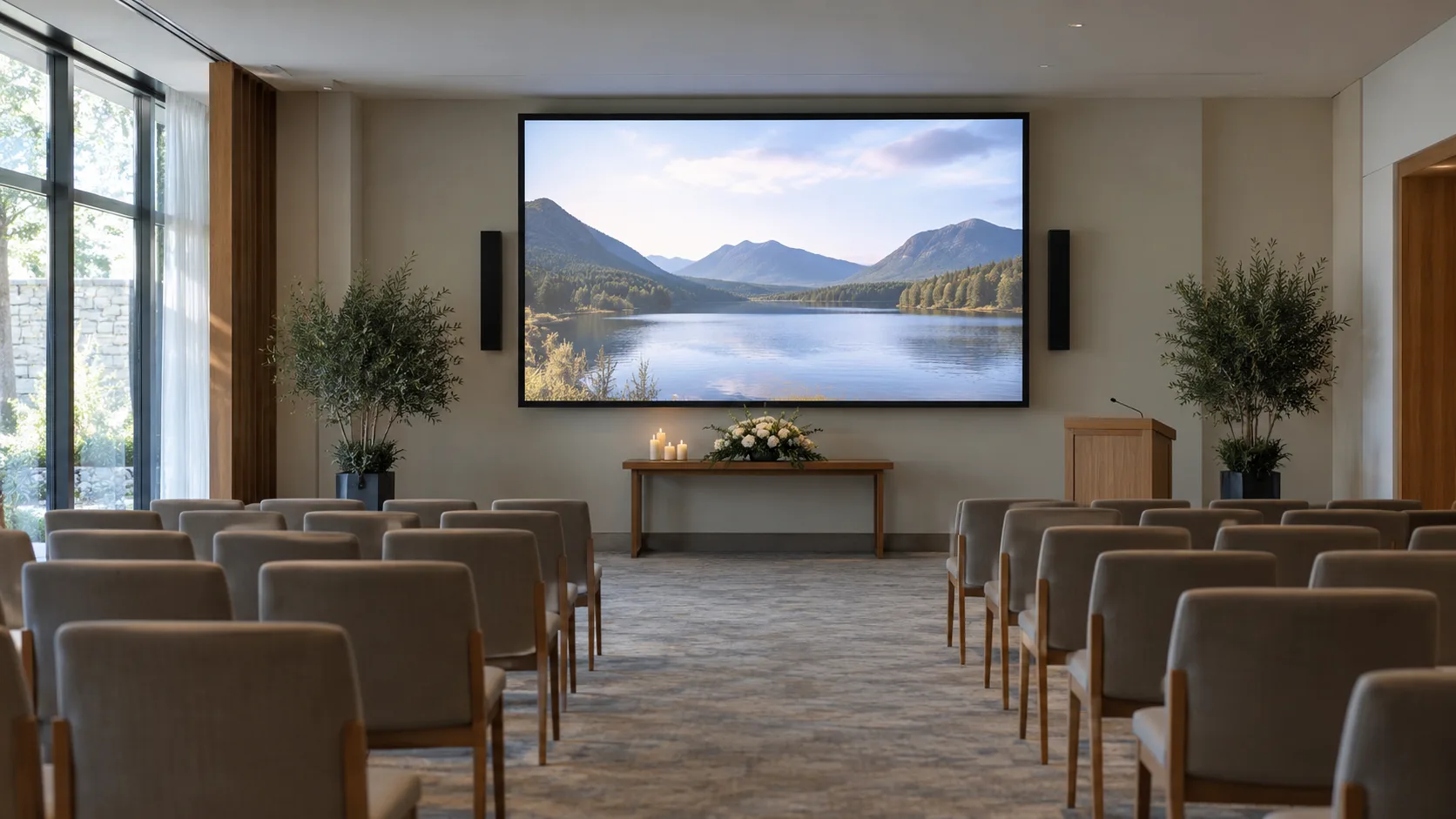
A funeral chapel video playback check should prove that the approved file plays correctly through the actual service equipment, that the operator knows the cue and that the ceremony can continue if playback fails. Record the tested filename, runtime, device, sound route and fallback before marking the video ready.
Before the venue test: identify the approved file
Use the final export that the family approved, not an earlier link or an editor’s project file. If the family has requested a correction, keep the order awaiting a replacement until the revised file is checked. A technically successful test cannot make an unapproved version suitable for the service.
-
Match the displayed name and opening portrait to the order.
-
Record the exact filename, version and runtime.
-
Download or transfer the complete file using the agreed secure method.
-
Open the file and inspect its beginning and ending before traveling to the venue.
-
Obtain the venue’s accepted delivery route, file requirements and test access time.
Ask the venue which playback device it actually uses. A television reading a USB drive is different from a laptop connected to a projector. Do not prescribe one format as universally compatible. Keep the venue’s answer with the tribute production workflow so the export requirement reaches the editor.
At setup: test the complete picture and sound path
Run the test with the final screen, speakers, cables, adapters and player. Place a staff member at the rear and another at the side if possible. Faces and captions that look clear close to a monitor can be difficult to see across a room.
| Check | What the operator does | Ready when |
|---|---|---|
| Picture | Inspect the opening, a group photo and a captioned frame. | The image is correctly shaped and important content is visible. |
| Sound | Play a quiet passage and a louder passage through the service speakers. | Speech or music is audible without an abrupt volume change. |
| Controls | Start, pause, resume and reach the closing frame. | The operator knows the controls and accidental interface displays are minimized. |
| Ending | Let the file finish naturally. | The next screen or silence matches the agreed ceremony plan. |
Check subtitles or captions where supplied. Avoid cropping an image merely to remove black borders if that would cut off faces or words. Set the display mode deliberately and review it from guest seating. Tape or protect cables according to the venue’s setup procedure and keep walking routes clear.
Before guests arrive: remove avoidable interruptions
Close unrelated applications, silence notifications and confirm the device will remain awake for the required period. Check its power connection and the remote’s batteries. Use the venue’s authorized procedure for updates and network access rather than changing managed equipment without permission.
-
The final file is already available on the approved playback device.
-
The correct display input and sound output are selected.
-
The player opens at the intended first frame, without another family’s file visible.
-
The operator has tested the cue from their actual position.
-
The backup is reachable and its purpose is understood.
-
The current cue sheet is beside the operator, with a copy held by the officiant.
Do not wait until guests are seated to discover that a download requires a password or a remote approval. If streaming is part of the event, test its contribution separately: sound in the chapel does not prove that remote guests receive it.
Give the operator a precise cue sheet
Record the spoken cue, the action and the person who confirms completion. “Video after welcome” leaves uncertainty when the speaker changes the introduction. Agree an exact sentence or a visible signal with the officiant.
A sample cue agreement
“After the welcome, the officiant says: ‘We will now share the photographs chosen by the family.’ The operator starts the approved ceremony file. At the final frame, the operator holds the screen as agreed. The officiant resumes only after the operator gives the agreed signal.”
This wording is a planning example; adapt the introduction to the ceremony. Add the actual runtime from the slideshow timing calculation, the operator’s name and the agreed fallback to the working copy. A reception loop needs a different cue sheet because it has a start, repetition and stopping point.
Agree what happens if playback fails
Discuss the fallback before the service, with the family’s representative and officiant. Set a brief troubleshooting opportunity appropriate to the ceremony. If it fails, the officiant continues with the agreed reading, silence or other contribution. Do not leave guests watching repeated restarts without explanation.
Example: the final file exists on the primary laptop and a tested spare device, but both rely on the same projector. The spare device addresses a laptop failure. It does not address projector failure. A printed portrait and a prepared spoken transition cover the second situation.
Keep the wording factual: “We will continue with the next reading and make the tribute available through the agreed family arrangements.” Only promise later delivery if that arrangement exists. The memorial video delivery guide covers the separate family copy.
Record the result and close the service copy
The test record should identify the tester, date, equipment path, final filename, runtime and any unresolved issue. Mark unresolved sound, approval or file problems clearly; “mostly tested” is not a release decision. If another operator takes over, have them read the cue sheet and locate the tested file.
After the service, return borrowed equipment and follow the agreed process for temporary copies. Record a playback problem in operational terms so the next service benefits: which device, which file and what action resolved it. Keep personal family information out of general maintenance notes.
Check locally: ask the venue about approved equipment, electrical and cable arrangements, accessibility support, music permissions and recording or streaming restrictions.
Funeral homes can discuss tribute video requirements with LifeTribute before agreeing production and delivery arrangements.
Frequently asked questions
Is a successful laptop preview enough?
No. It confirms only that the laptop opened that version. A different screen, player or audio connection introduces additional conditions. Test the service device through the actual display and speakers, with the room arranged as it will be used.
Can a USB drive be the only backup?
A second copy helps with a missing or damaged file, but it does not solve a failed screen, incompatible player or power loss. Identify which failure each backup addresses. Agree a non-video continuation as well, such as a spoken introduction and a printed portrait.
Should the venue keep the video after the service?
Follow the storage arrangement agreed for the order and the venue’s handling policy. Identify who controls the retained copy, whether the family receives a separate delivery and when temporary playback copies are removed. Do not leave files indefinitely on a shared desktop.